Six steps from scattered attention to a usable stopping point.
1
Choose the mode before the task
Ask what kind of state the moment requires. Choose Work for a professional deliverable, Maintenance for life infrastructure, Parent for protected presence, Reset for stabilization, or another mode whose rules fit the situation.
2
Name one visible next action
Use a concrete action you can recognize as done: “send the client update,” “put the documents in date order,” or “choose dinner and start the rice.” Avoid category labels such as “work on website.”
3
Choose a realistic time boundary
Use the mode’s suggested timer or adjust it. The time is a container, not a prediction of how long the entire project should take.
4
Run the session without changing modes
Keep unrelated work out of the active session. If something important appears, capture it for later rather than silently switching contexts.
5
Close with a clean thread
Record what moved, where you stopped, and the smallest next action. This is what lets tomorrow’s session begin without reconstructing today’s thinking.
6
Use the planner for predictable transitions
Schedule the modes your week reliably needs. Choose a one-time date, weekly days, alternating weeks with a starting date, or a finite list of specific dates.
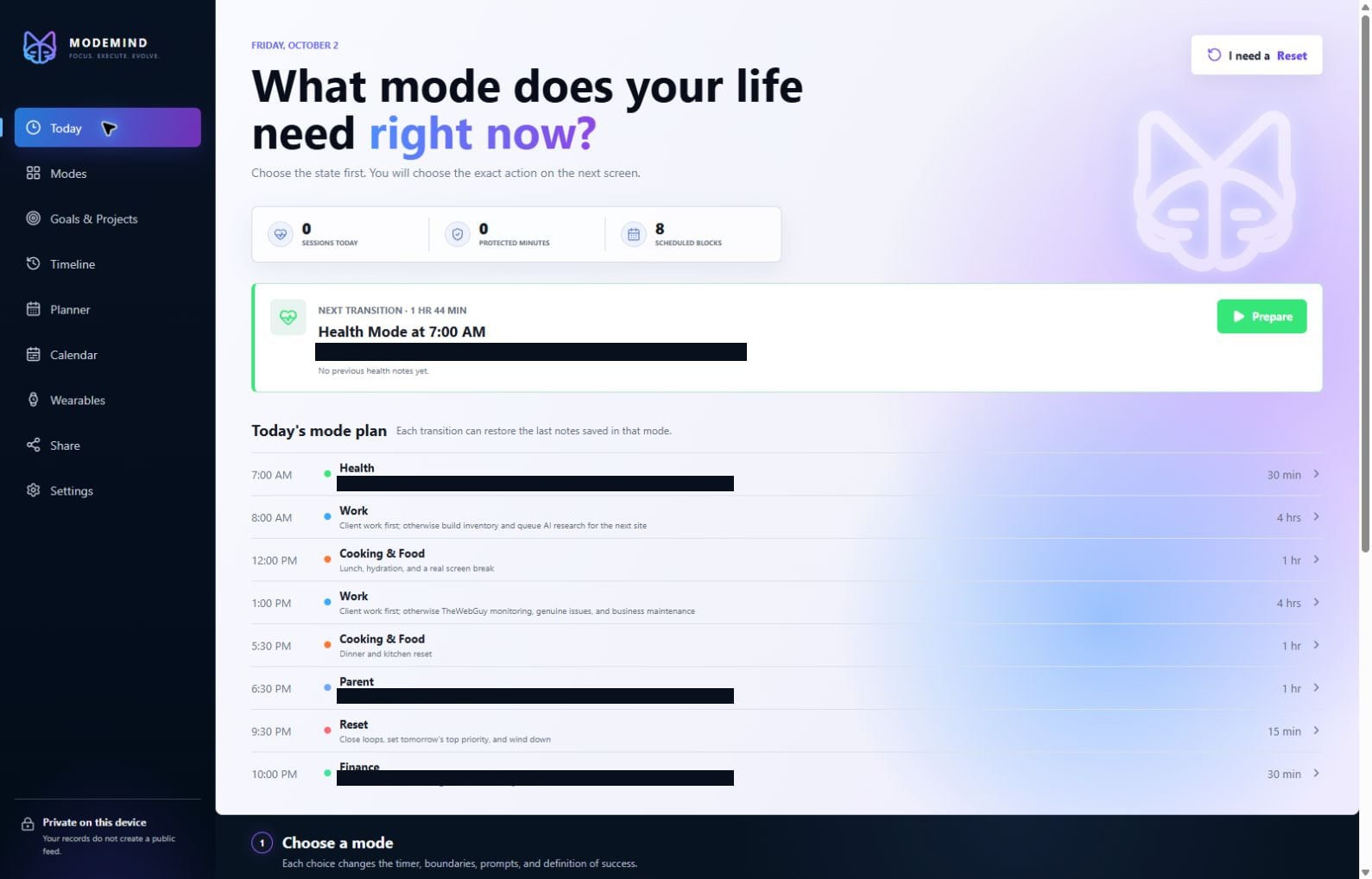
Today — choose the state first, see the real day ahead, and prepare one exact action. Sensitive schedule details are hidden in this guide capture.
Choose deliberately
Use the Mode guide when two modes seem plausible.
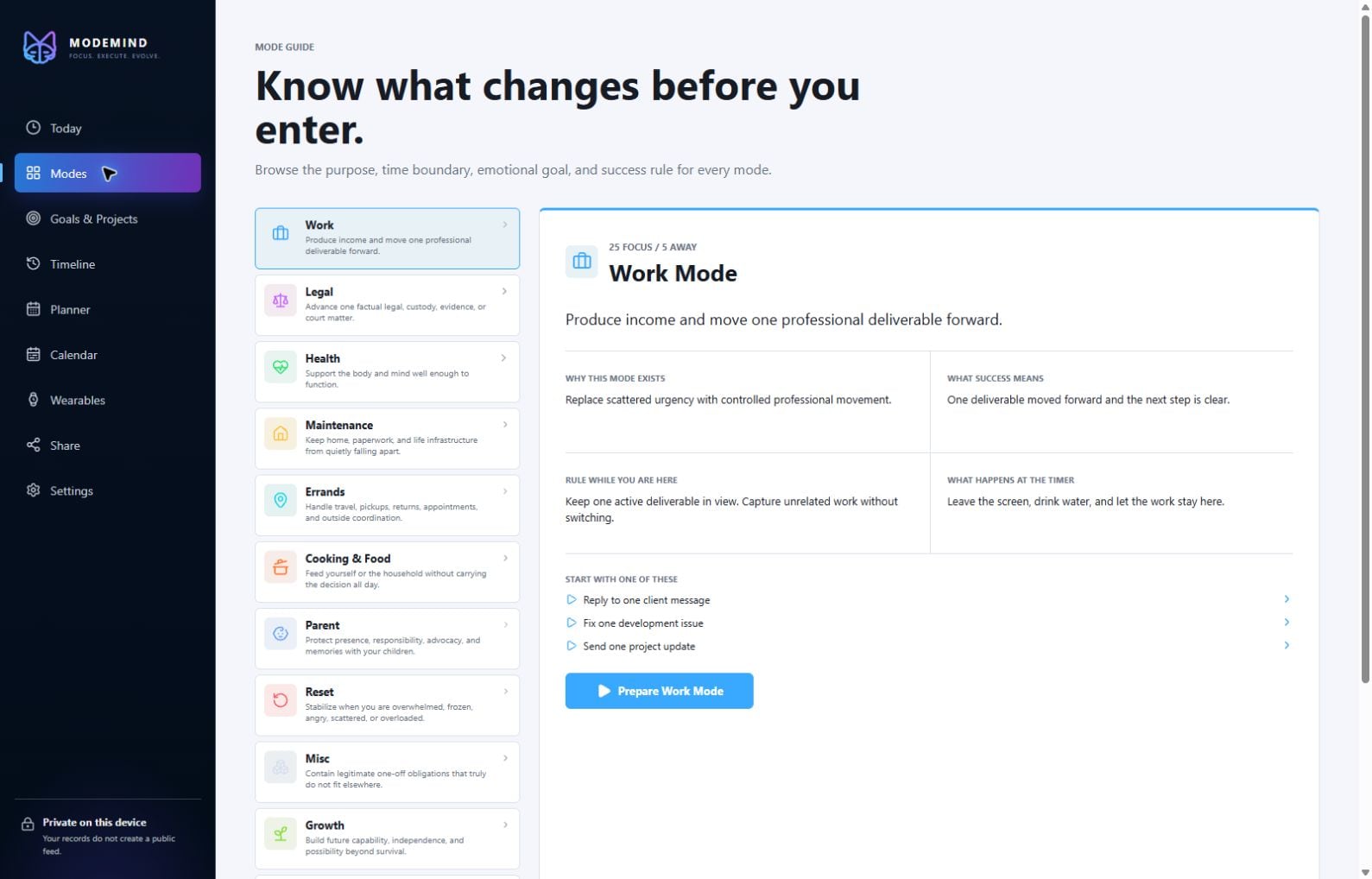
Open Modes to compare purpose, time boundary, emotional goal, rule, definition of success, and example starting actions. Choose based on the state the work needs—not simply the topic it mentions.
Example:Researching a business expense is usually Finance Mode. Building the paid client feature that uses it is Work Mode. Reading about a future skill may be Growth Mode.
Modes — compare purpose, boundaries, prompts, and definitions of success before entering a state.
Connect action to direction
Keep the parent steady and work through meaningful subgoals.
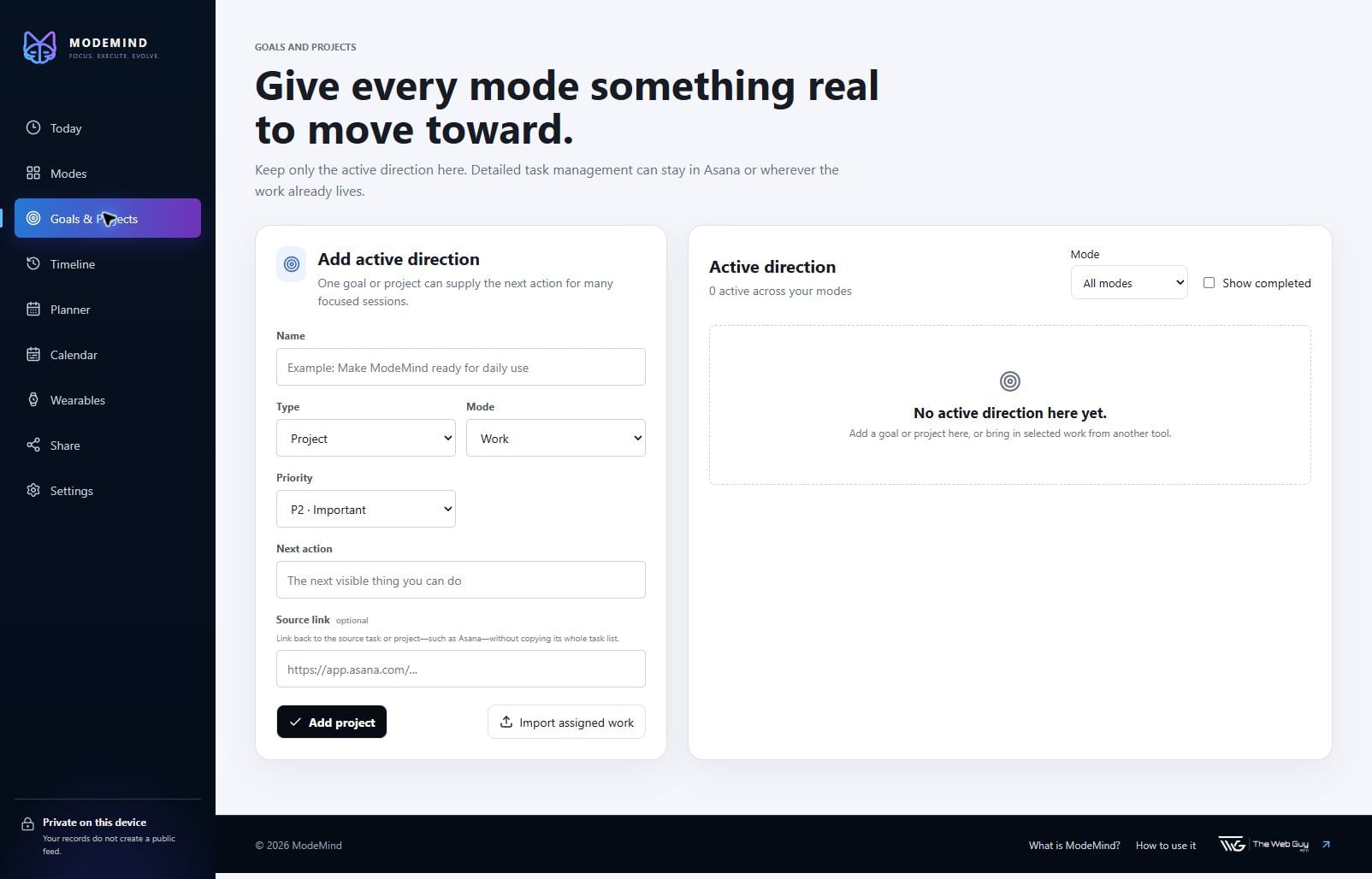
Give each long-term goal or project a mode, priority, description, and status. Beneath it, name one current short-term subgoal with a clear completion condition and one concrete next action. Sessions and planner blocks use that action—not the entire parent. When the subgoal is done, its history stays visible, the parent stays open, and the next queued subgoal can take over.
P1 · Now: active work that should win when its mode is available.
P2 · Important: meaningful work to advance after immediate priorities.
Maintain: keep healthy without turning it into the primary project.
Later: preserve the direction without pulling it into the current stage.
Goals & Projects — persistent direction feeds a current subgoal, then one concrete session action.
Teach the week
Plan modes around real patterns, not an idealized calendar.
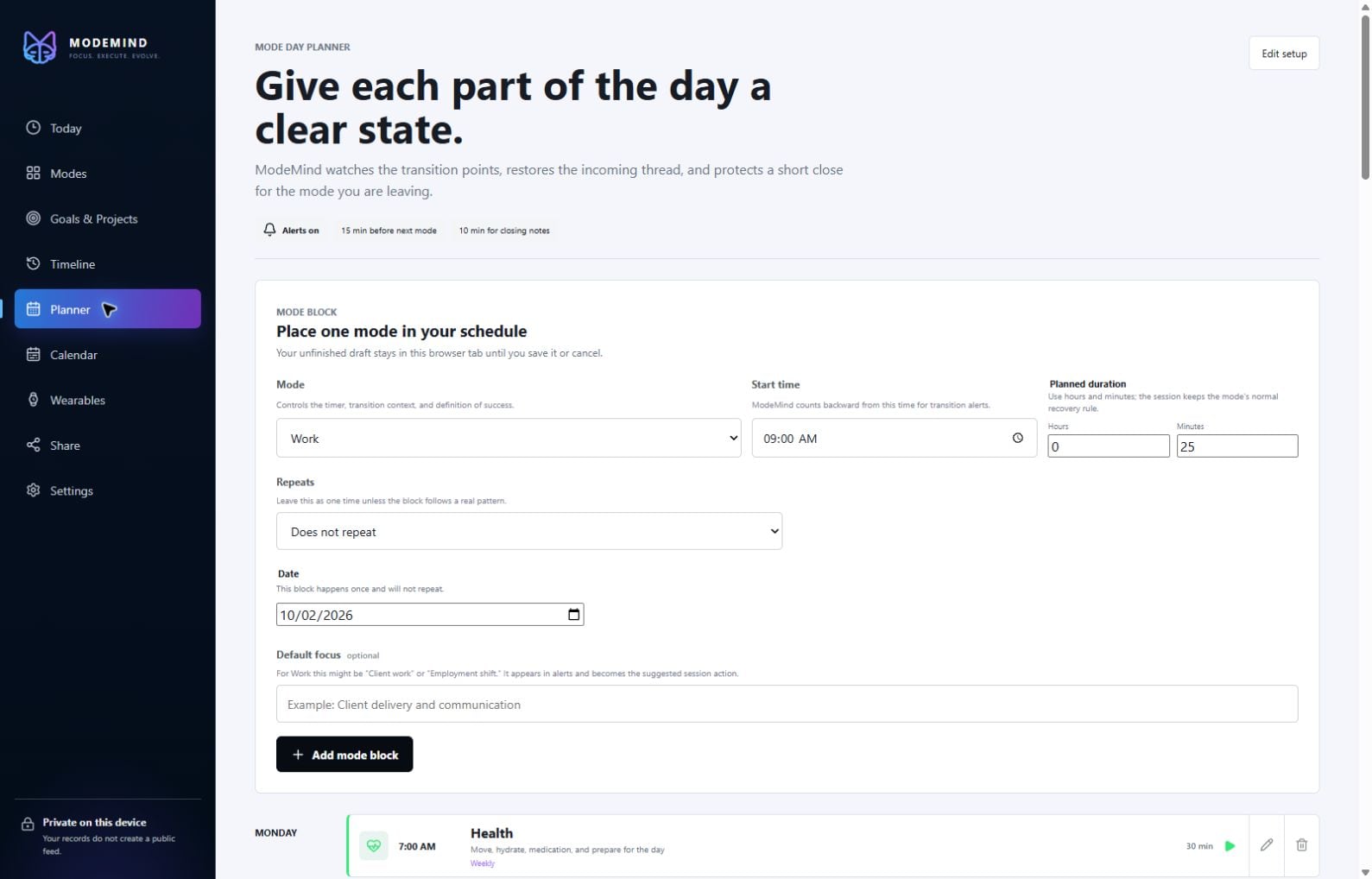
Set the transition notice and closing buffer first. Then add only the blocks you can describe honestly. Use “Does not repeat” for a single appointment or session, weekly for stable patterns, biweekly for alternating weeks, and specific dates for irregular runs.
Leave flexibility:Do not fill every Work block with an internal project if paid client work can arrive. A mode block can define the kind of attention while the current priority chooses the exact project.
Planner — prepare both sides of a transition: what is coming next and what must be saved before leaving the current mode.
The rest of the app
See every ModeMind page before you need it.
These captures come from the signed-in desktop app. Account, Legal, health, family, and financial details are excluded or blacked out.
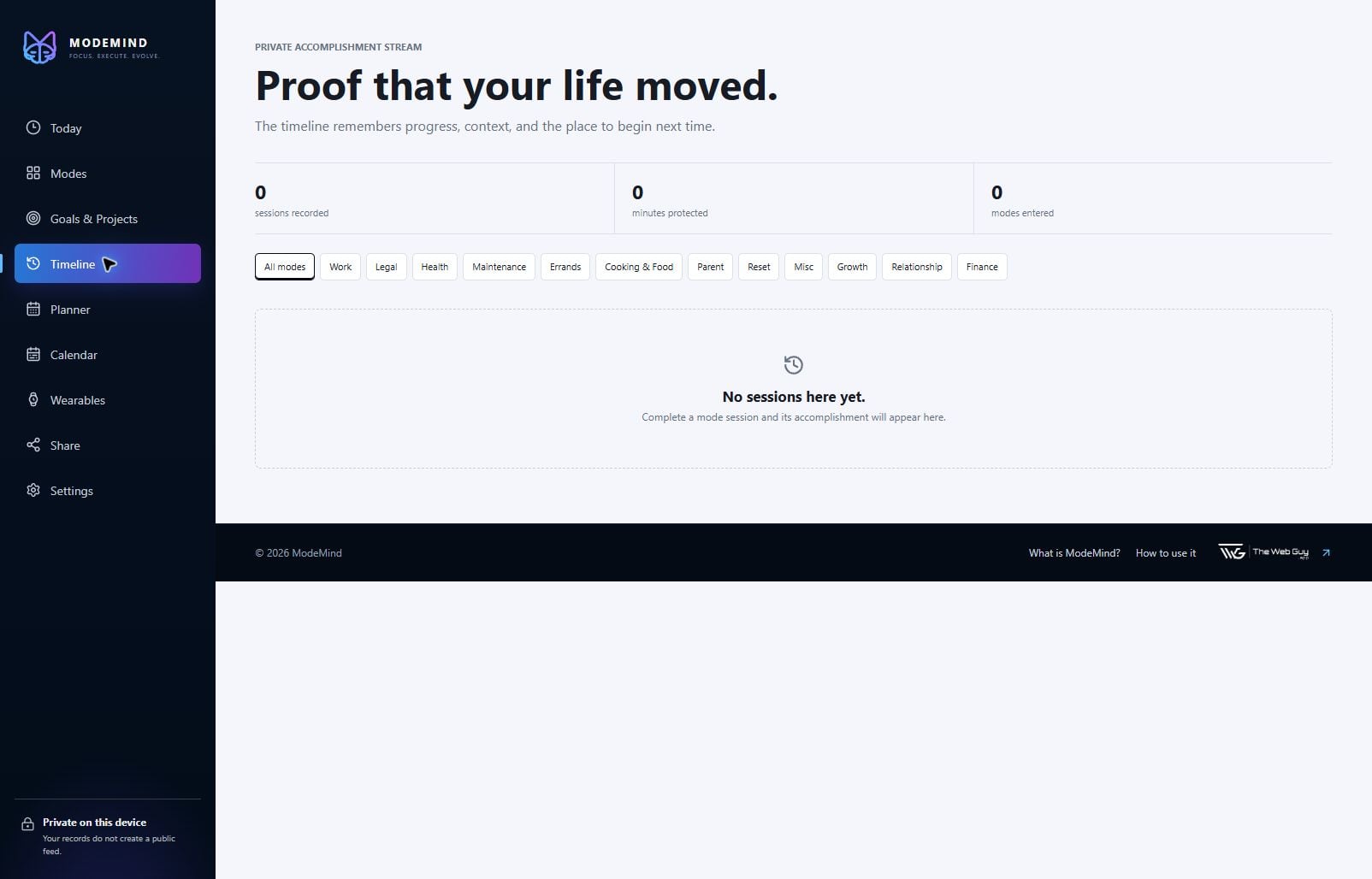
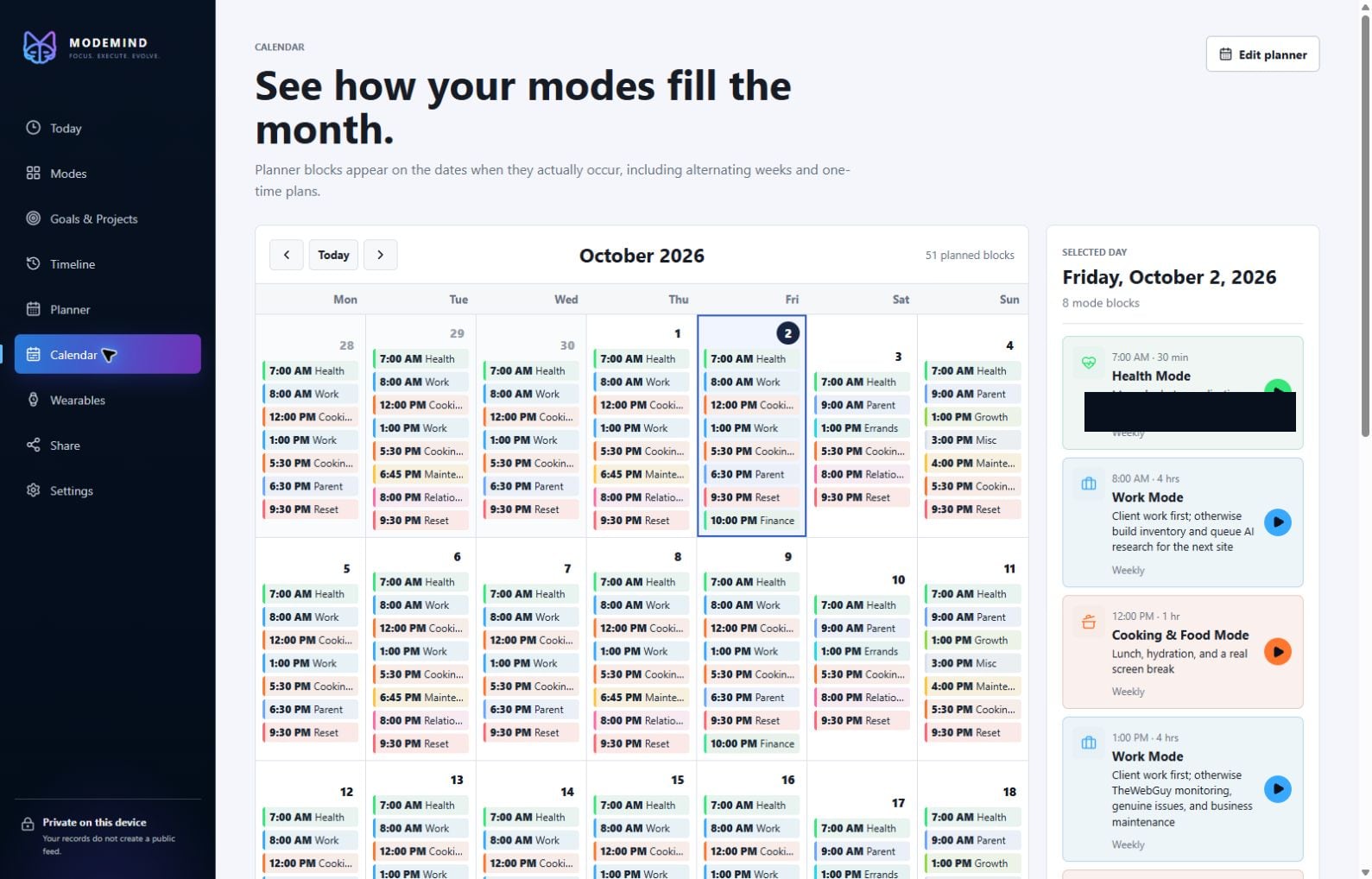
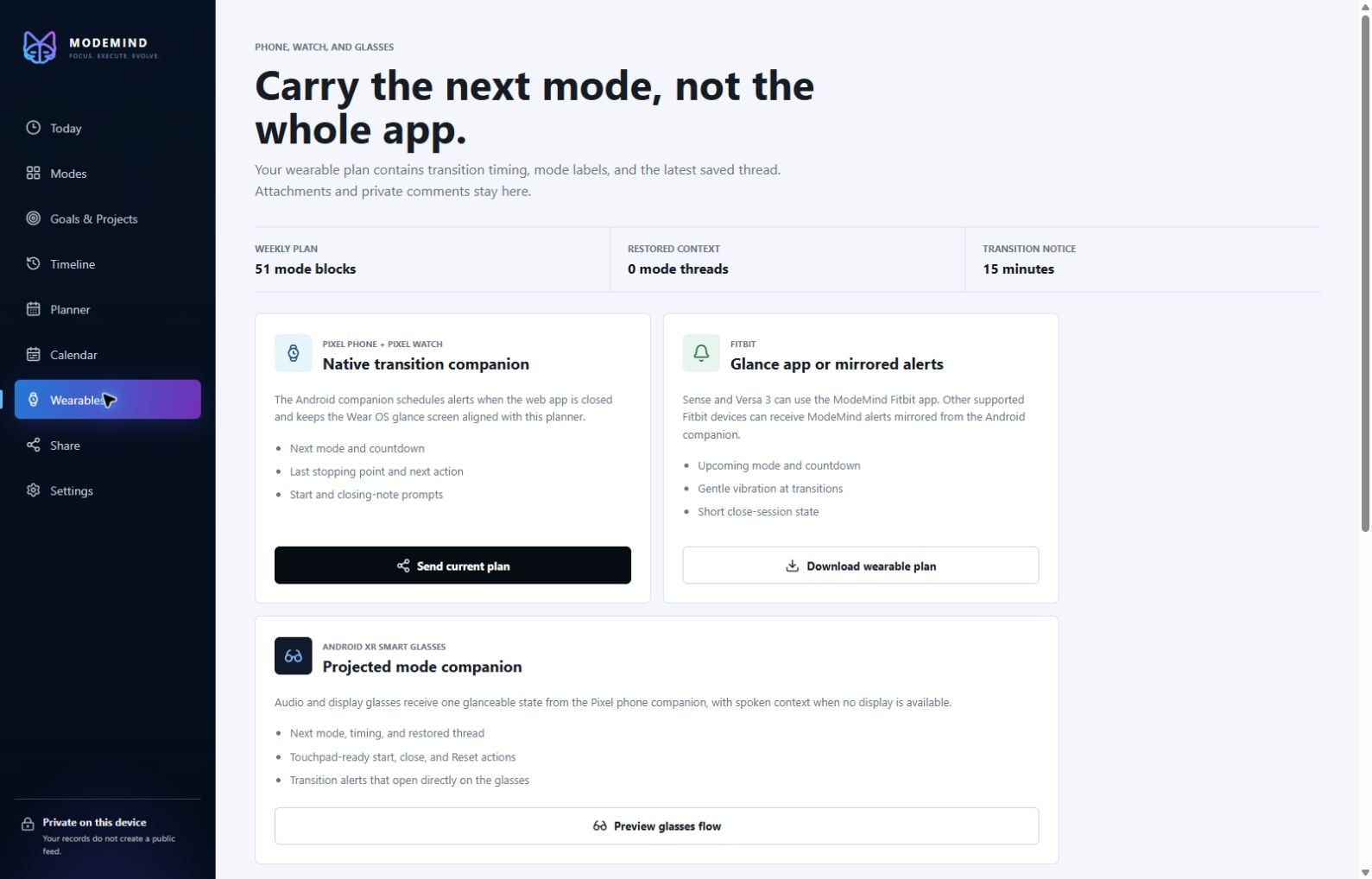
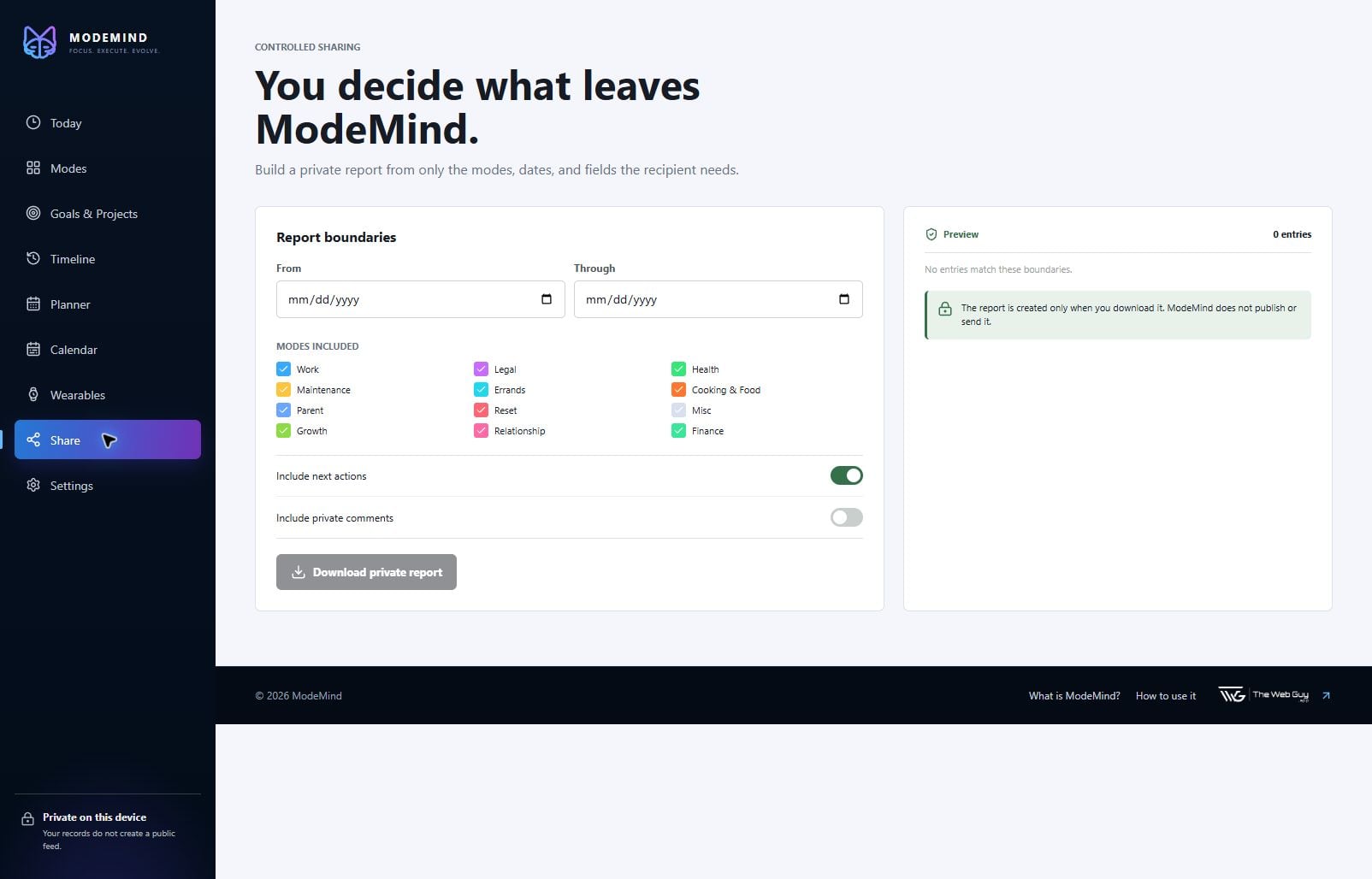
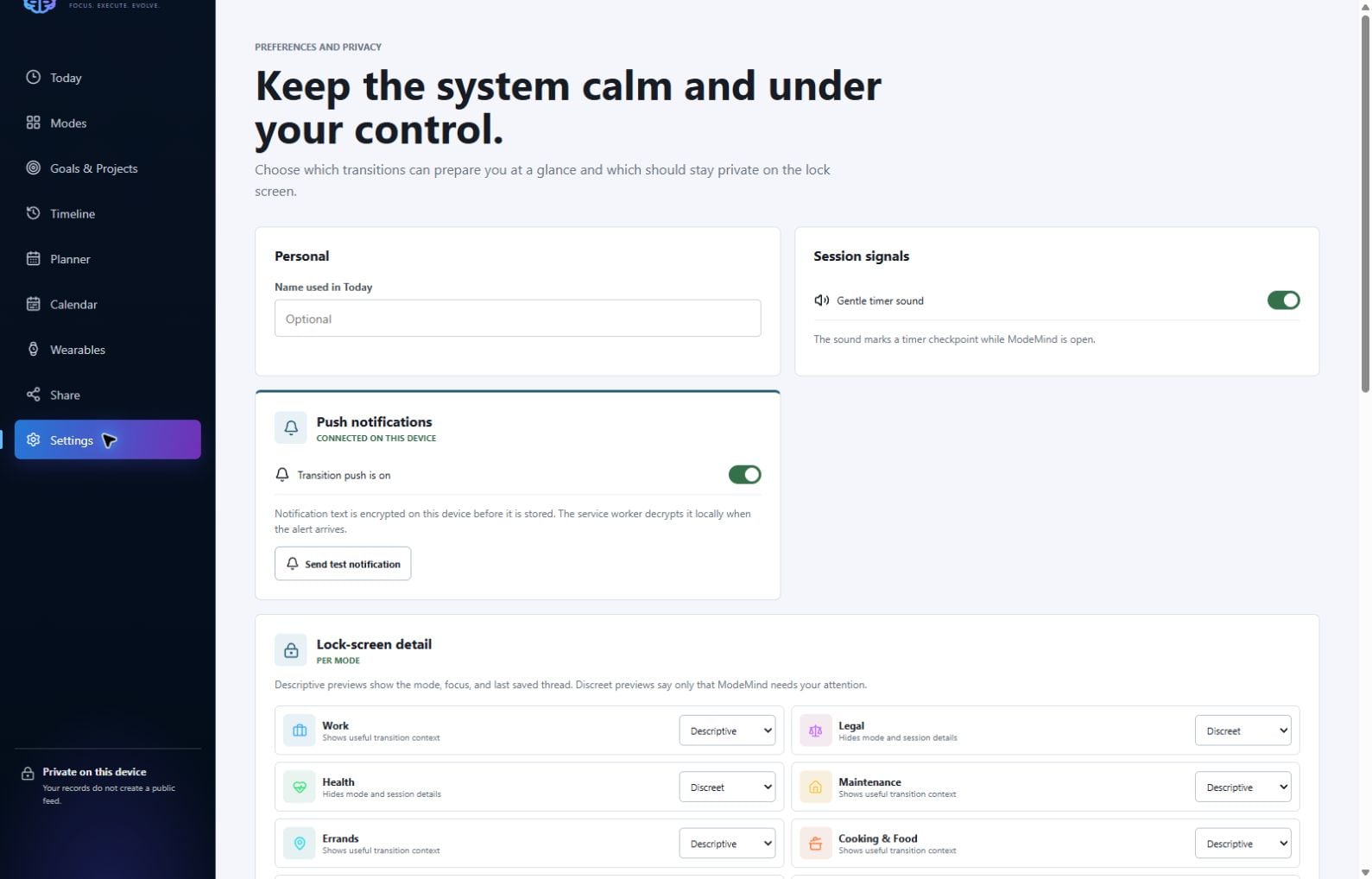
Timeline — review completed sessions, stopping points, and the next thread to pick up.Calendar — see how repeating and one-time blocks land on real dates. Sensitive schedule details are hidden in this guide capture.Wearables — carry upcoming transitions and a small amount of restored context without carrying the whole app.Share — choose dates, modes, and fields before a private report is created.Settings — control signals, notifications, privacy detail, encrypted Dot updates, exports, and device data.
Real examples
What a good ModeMind session looks like.
Work Mode 25–50 minutes
Situation: A paid client request arrives during project time.
One action: Reply with the requested estimate and list the next implementation step.
Clean close: Save the file or message where you stopped. Client work keeps priority; your internal project remains ready to resume.
Reset Mode 5–10 minutes
Situation: The day feels too loud to choose anything useful.
One action: Drink water, slow your breathing, and write the single obligation that truly needs attention next.
Clean close: Choose the next mode only after the nervous system is steadier.
Parent Mode Protected and flexible
Situation: Work is still open when parenting time begins.
One action: Save the current work thread, close the laptop, and complete the first parenting responsibility.
Clean close: Do not score the block by productivity. Presence and responsibility are the success rule.
Finance Mode 10–25 minutes
Situation: A weekly money check keeps being avoided.
One action: Open the accounts and reconcile the next uncategorized transaction.
Clean close: Record the next account or decision rather than turning the session into a full financial overhaul.
Using Dot safely
Let Dot prepare changes; approve them in ModeMind.
After the private vault is set up, ModeMind can sync a limited planner snapshot and non-Legal goals/projects so Dot can make accurate suggestions. Dot can add or edit directions, prepare sessions, and update planner blocks, but those changes wait in Settings until you review them.
1
Open Settings → Private vault and Dot, sign in, and create or unlock the vault.
2
Choose Sync state for Dot. Future ModeMind changes sync automatically while the vault remains available.
3
Ask Dot for a specific change, such as “Move Friday Finance to 10 PM” or “Set ModeMind to maintenance priority.”
4
Return to ModeMind, choose Check Dot updates, review the details, and apply or dismiss the request.
Legal Mode items, session history, private notes, comments, and attachments are not included in Dot’s readable sync.
Prompt Dot by outcome
Say what you want changed. Dot prepares the ModeMind action.
You do not need tool names or special syntax. Include concrete days, times, durations, priorities, or next actions when they matter. Dot will ask for a missing detail when guessing would change the result.
Choose a mode
“I have a client change, three household chores, and I feel scattered. What mode should I enter first?”
What Dot will do
Dot compares the 12 mode purposes and success rules, recommends one mode, and helps reduce the situation to a single visible next action. Asking for advice alone does not change ModeMind.
Add a project
“Add ‘Finish the DOT integration’ as a P1 Work project. Make ‘Verify the daily workflow’ its current subgoal, with the next action ‘Test the full approval flow.’”
What Dot will do
Dot prepares the persistent Work project plus its actionable short-term layer. You review the encrypted addition in ModeMind before it appears in Goals & Projects.
Move a project forward
“Mark the current subgoal under Sites for Sale complete, then make ‘Create the reusable pre-production brief’ the next subgoal.”
What Dot will do
Dot prepares a subgoal completion and the next meaningful outcome. The Sites for Sale parent project stays open.
Update direction
“Move ModeMind to Maintain after it is usable, and set the AI video series to P1.”
What Dot will do
Dot reads the non-Legal directions you shared, identifies their stable records, and prepares only those priority changes. Nothing is edited until you approve the updates.
Plan the week
“Schedule Work every weekday from 8 AM to noon, starting next Monday.”
What Dot will do
Dot prepares repeating planner blocks with the same days, times, duration, and recurrence choices available in the Planner. You can review conflicts before applying them.
Handle real recurrence
“Add Parent Mode every other Saturday and Sunday at 9 AM, starting October 10.”
What Dot will do
Dot prepares an alternating-week pattern anchored to the date you supplied. It can also create a one-time block or a finite list of specific dates.
Edit a block
“Move Friday Finance from 9:30 PM to 10 PM and keep everything else the same.”
What Dot will do
Dot uses the calendar-safe schedule to identify and modify the existing block. If the destination conflicts, ModeMind lets you keep both, overwrite the competing block, or cut into it by moving its start after the Dot entry and keeping only its remaining time.
Run a session
“Start a 25-minute Work session to verify the calendar sync.”
What Dot will do
Dot prepares the mode, action, optional context, and duration. After approval, ModeMind starts the timed session on your device.
Control a session
“Pause this session,” “begin recovery,” or “open my closing notes.”
What Dot will do
Dot queues the requested active-session control. ModeMind checks the current session state when you approve it.
Capture and close
“Add this note: the calendar mapping is complete. Then close with the next action to test recurring events.”
What Dot will do
Dot can queue a write-only session note and prepare the accomplishment, stopping point, and next action. You still confirm the final timeline save in ModeMind.
Update a calendar
“Add my ModeMind schedule to my private Google Calendar.”
What Dot will do
Dot retrieves the synced calendar-safe schedule—including recurrence and durations—without asking you to paste it. With calendar access available, it can use that data to prepare the calendar events; Legal blocks and private history remain excluded.
Privacy and alerts
“Make Finance and Health notification previews discreet, leave Work descriptive, and turn transition notifications on.”
What Dot will do
Dot prepares the lock-screen detail and notification preference changes. Browser permission prompts and the final ModeMind approval remain on your device.
Open the right place
“Open Goals & Projects so I can review what is waiting.”
What Dot will do
Dot can prepare navigation to Today, Modes, Goals & Projects, Timeline, Planner, Calendar, Wearables, Share, or Settings so you land at the correct control surface.
Habits that keep it useful
Keep ModeMind lighter than the life it supports.
One action, not a project plan
The active session needs one visible move. Put the larger structure in the goal, project, or source system.
Use honest time
A short session that creates a clean next step is better than an ambitious block you avoid starting.
Protect transitions
Use the closing buffer. Saving the thread is part of finishing, especially when another responsibility is about to begin.
Reset without punishment
When the planned mode is no longer possible, choose the mode the moment actually needs and continue from there.
Start now
Choose one mode and one action.
You can build the planner and deeper system over time. The first useful session only needs the right mode, a clear next action, and a realistic boundary.